Getting Started with R & RStudio
CEU, AIIMS Bhopal
What are R and RStudio?
We use two programs that work together.
R is the Engine.
- The programming language.
- It does all the calculations.
- It’s the “kitchen” (oven, knives, etc.).
RStudio is the Dashboard.
- An “Integrated Development Environment” (IDE).
- It’s the “organized countertop & recipe book” you use to operate the kitchen.
The RStudio Interface
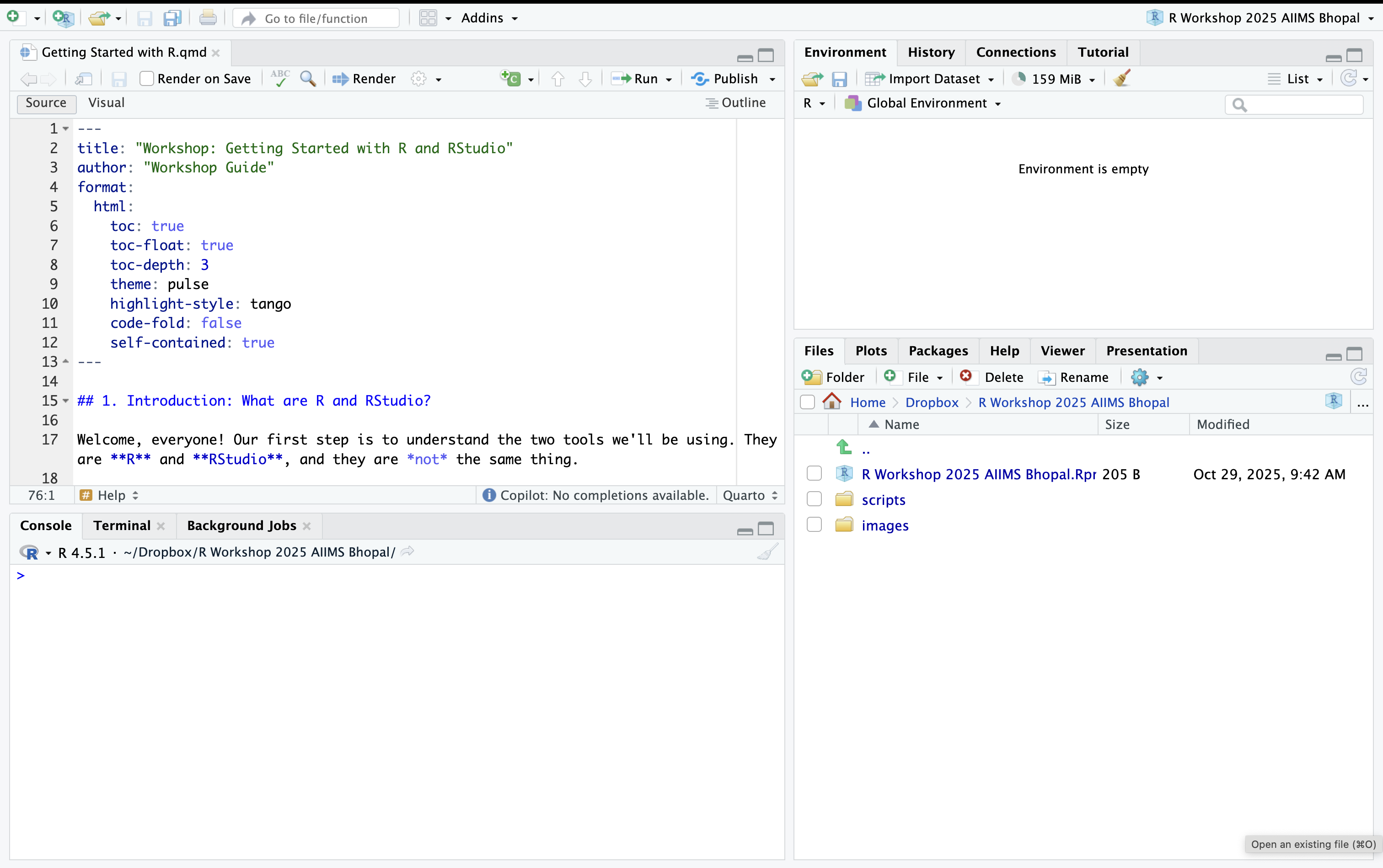
RStudio Interface: The Panes
- 1. Source Editor (Top-Left)
- 2. Console (Bottom-Left)
- 3. Environment (Top-Right)
- 4. Multi-Tool (Bottom-Right)
- What it is: Your text editor.
- Use: Write and save your R Scripts (
.R) and Quarto docs (.qmd). This is your “recipe book.” - Key Action:
Ctrl + Enter(orCmd + Enter) to run the current line.
- What it is: Where R actually runs. You’ll see the
>prompt. - Use: Test code, see outputs, and view error messages. This is like a “calculator” or “testing a single step.”
- Note: Code typed here is not saved.
- What it is: Your R session’s “memory.”
- Use: See all objects (
data,variables) you’ve created. These are your “prepped ingredients.” - History tab shows all your past commands.
- Files: Browse your computer’s folders and files.
- Plots: Where your graphs appear.
- Packages: Manage your installed “appliances.”
- Help: Look up help files for functions.
Saving Your Work: R Scripts
Your Console history is not saved. To save your work, you must use an R Script (.R file).
- Go to
File > New File > R Script. - Write your code in the Source Editor. This is your reproducible recipe.
- Use comments (
#) to explain your code. - Run code line-by-line using
Ctrl + Enter.
The “Where Am I?” Problem
This is the #1 source of confusion for new R users.
- The Problem: You try to load a file
read_csv("data.csv")and R says: “File not found!” - The Reason: R is always “standing” in one folder, its Working Directory.
- Analogy: R is a cook at a single workbench. When you ask for
"data.csv", R only looks on that workbench. If the file is in the pantry (your Desktop), R won’t find it.
The “Bad Solution” (Don’t Do This!)
You will see this code online. Do not use it.
- Why it’s bad: This “hard-codes” your exact folder path.
- Analogy: It’s like writing your specific home address in a recipe.
- The Result: When you send your script to a colleague (who has a different “address”), your script breaks. It is not reproducible.
The “Good Solution”: RStudio Projects
We will NEVER use setwd(). We will ALWAYS use RStudio Projects.
- What it is: A single file (
.Rproj) that lives in your project’s main folder. - The Magic: When you double-click the
.Rprojfile to open RStudio, it automatically sets your Working Directory to that folder. - Analogy: It’s a self-contained “kitchen-in-a-box.” All your recipes, ingredients, and final dishes live inside one organized, shareable folder.
The RStudio Project Workflow
This is the Golden Rule for all your work.
- Your script
my_recipe.Rcan use relative paths likeread_csv("data/ingredients.csv"). - This will work for anyone who downloads your project folder.
Expanding Your Power: Packages
- The Concept: “Base R” is your basic kitchen. Packages are “fancy appliances” you get for specific jobs.
- Analogy:
- Want to wrangle data? Get the
dplyr“food processor.” - Want to make graphs? Get the
ggplot2“stand mixer with piping kit.” - Want a bunch of tools? Get the
tidyverse“full professional kitchen suite.”
- Want to wrangle data? Get the
Packages: The 2-Step Process
This is a critical concept.
Step 1: INSTALL
- What: “Buy the appliance” from the store (CRAN) and have it delivered to your kitchen.
- When: Only ONCE per computer.
- How:
(Run this in your Console)
Session Recap: Best Practices
- Always organize your work using RStudio Projects (your “kitchen-in-a-box”).
- Write your code in R Scripts (your “recipes”).
- Run code from your script using
Ctrl + Enter(orCmd + Enter). - Use comments (
#) to explain why you are doing something. - Load all your required packages (using
library()) at the very top of your script.